
The appliances fed with water from the rainwater storage tank are deliberately plumbed to only ever be supplied from that tank, so their operation is reliant on there being a reserve of water in the tank at all times. Since there’s no guarantee of rainfall, it’s possible for the tank to be emptied if the rate of usage exceeds the rate of supply of collected rainwater for a prolonged period. To ensure there is always some water in the tank there’s an automated top-up mechanism which partially fills the rainwater tank with mains water if the level gets too low; below about 1,000 litres.1 Note that the presence of this top-up mechanism means the property will still be subject to any ‘hosepipe ban’.
One problem with the metering of the water usage in the Outbuildings is that any mains water top-up of the rainwater tank gets counted twice:
- Once on the way into the rainwater tank, since this is water coming from the mains and so gets recorded by the ‘cold water’ meter in the Outbuildings
- Again on the way out of the rainwater tank, as any other consumption from the tank would be, by the ‘rain water’ meter in either the House or the Outbuildings
Initially the operation of this mains top-up wasn’t expected to be a common occurrence but during the drought in the Spring and Summer of 2026 it happened several times – enough to significantly affect the monthly summary statistics for water usage.2
In principle, one option would be to move the take-off point for the mains top-up valve so that it is upstream of the ‘cold water’ meter in the Outbuildings, such that the water usage is not metered on the way into the tank – only on the way out. However, an important role of that ‘cold’ meter (and the corresponding one in the House) is for comparison with the ‘billing’ meter owned by Severn Trent Water, to check for any leaks on the 600m-long underground supply pipe – which is why the installation was initially plumbed the way it was. Removing this ability to cross-check with the Severn Trent meter would be a significant loss and so isn’t a practical option.
There are a few possibilities to address this double-counting:
- Leave things as they are and just flag the issue for consideration when reviewing the water consumption (which will appear artificially high)
- Make use of the water level sensor in the rainwater tank – perhaps correlating a fairly rapid increase in the water level with high usage of mains water to estimate the volume of mains top-up consumed
- Keep track of the time for which the mains top-up solenoid valve is open; this valve is downstream of the 3 Bar pressure regulator so should be seeing a constant 3 Bars of pressure and its flow rate could be calibrated using the ‘cold water’ meter – so the duration for which the valve is open could be a good proxy for its water usage
- As things stand, this valve is controlled automatically by a float switch in the tank so some electrical sensor would need to ‘watch’ for the valve being given a live electrical feed – perhaps something like a KNX 230V Binary Input Sensor
- Potentially, the float switch could be replaced by a more sophisticated top-up control using the water level sensor (and a remote-controlled mains switch for the solenoid valve) where the on-time would be actively controlled and tracked
- Add a further water meter to the dedicated supply pipe for the mains top-up valve
- While this would be ‘in series’ with the existing ‘cold’ supply meter, the reading could just be subtracted to give the actual cold mains usage – the same as is done for the ‘hot’ water usage in the House
An additional water meter is most practical option – and certainly the least surprising to pass on to a future home owner. Large-bore water meters can be expensive but this would be on a 22mm pipe and actually a 15mm meter would be fine; the Severn Trent meter is only a 15mm model and a slight restriction on the flow through the solenoid valve would actually be beneficial. (When that valve is open to top-up the tank, there’s a noticeable reduction in the mains water pressure in the House.) 15mm meters are made in larger quantities and often have plastic, rather than brass, bodies and so are significantly cheaper than larger models. While it would not necessarily need the automated M-Bus-readable Cyble adaptor head which the other meters have (which would be an extra £90 inc. VAT) it makes sense to fit an Itron Aquadis+ meter which could accept a Cyble adaptor if required. A plastic-bodied 15mm Aquadis+ meter is about £50 inc. VAT.
The meter was installed in mid October 2026 and is shown in the photo below, above the Wisy MultiMat Rainwater Unit that houses the solenoid valve. The pipework needs insulating once it’s been confirmed there are no water leaks (and the isolating valve is firmly in ‘off’ position while the pipe thread sealant cures)
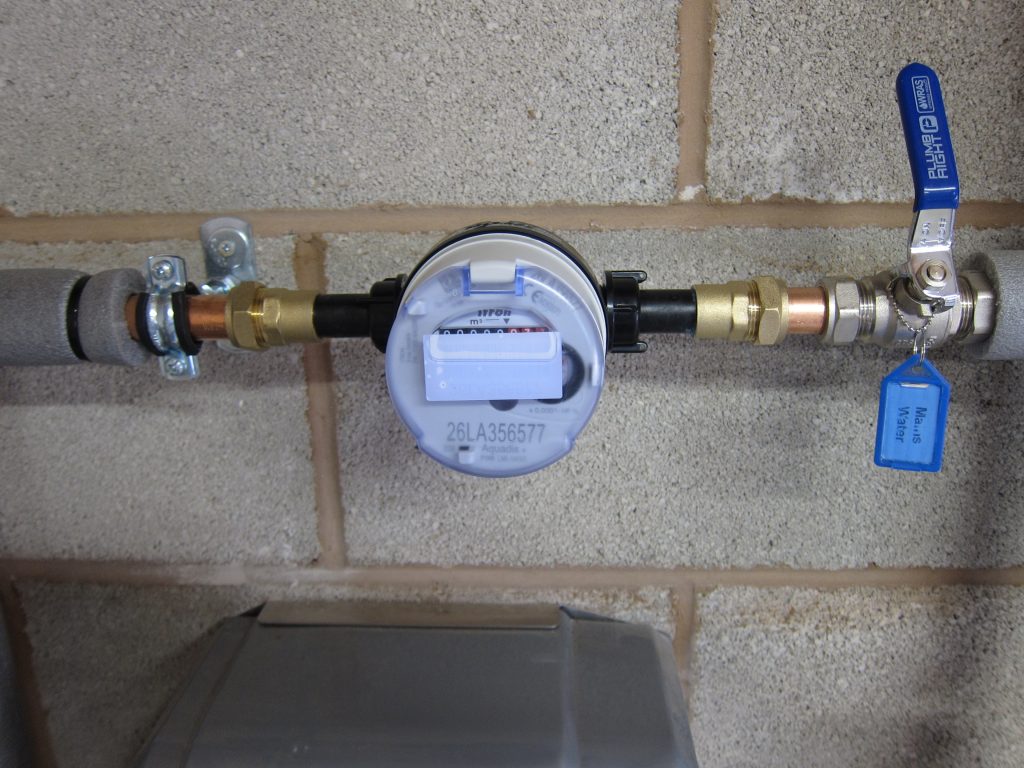
The current plan is just to read the meter manually when I record all the readings on the first of every month, subtracting any reading from the mains cold water usage figure. I can’t justify spending £90 on another M-Bus readable Cyble adaptor head. I do have some spare Pulse-Output Cyble adaptors (bought in error by the plumbers who installed the meters in the House) but one of those would need a pulse-count reader to track its output – something like a Relay PadPuls M1.
- Rainwater is considered a Category 5 Fluid in the UK Water Regulations and direct connections between the Mains Water and Rain Water pipework are prohibited. The only allowable way for there to be any sort of interchange of these fluids is via an approved (e.g. Type AA) Air Gap between a supply of mains water and a connection to the tank. A compliant air gap is provided via the Wisy MultiMat Rainwater Unit. ↩︎
- In times of low rainfall there’s often an increased demand for water usage in the garden, which increases the consumption at exactly the same time the supply is reduced. ↩︎
