
Tesla Powerwall Energy Export Option Setting

The Tesla Powerwall 3 integrated inverter-and-battery system is meant to be ‘smart’ in learning about solar generation and energy usage patterns, but it’s not proven to be as clever as I was expecting – notably in terms of Exporting from the Batteries to the Grid. One downside with the Powerwall is that its control algorithm is very much a ‘black box’ so it’s difficult to check if it’s working correctly – or even what “correctly” is expected to look like.

During the Winter, with modest solar PV generation and heat pumps running in both the House and the Outbuildings – plus all the other usual electrical loads – the Powerwall was effective in fully charging the batteries by Importing from the grid overnight, taking advantage of 6 hours of the Intelligent Octopus Go off-peak import rate of £0.07 per kWh and then using its battery to service all the electrical demand throughout the remaining 18 hours, generally avoiding all peak-rate Imports. Any solar PV generation – which could be significant on a sunny-but-cold Winter day – was Exported to the grid (in real-time).

At the end of March, with the heating off and much more solar PV generation, that model is no longer appropriate. In particular, with the distribution network operator imposing an Export limit of 5.5kW but the potential to generate more than 16kW at Noon, there’s a requirement to temporarily store much of the PV generation in the battery and then export that in the evening – to create the headroom in the battery to accept further solar generation ‘tomorrow’. If that doesn’t happen, the solar PV generation has to be curtailed once the battery gets full.

My expectation was that the Powerwall would have visibility of a solar PV generation forecast for ‘tomorrow’ and choose to Export to the Grid from the Batteries in the evening, since it knew all the generation would never be consumed on-site. But that’s not been happening: the Powerwall never exported any of the energy stored in its battery.

Within the Tesla iOS App, I see options to set the Operational Mode, choosing between:

  • Self-Powered, which “reduces the reliance on the Grid”
  • Time-Based Control, which “uses stored energy to maximise savings”

I’ve also been seeing two Advanced Options:

  • Permission to Export, which can either be Yes or No
  • Grid Charging, also Yes or No

With both Permission to Export and Grid Charging set to Yes, in Time-Based Control mode I saw all the Solar PV Generation being Exported to the Grid (up to the Grid Export Limit of 5.5kW, with additional generation above that limit being used to charge the batteries). However, none of the energy stored in the battery (either from local solar PV generation or from an off-peak import from the grid) was ever exported.

Tesla’s documentation for the Advanced Settings in the Mobile App includes the following text:

Energy Exports

Some energy suppliers allow Powerwall to send energy back to the grid and claim credits during peak times. If ‘Energy Exports’ is not available in the Tesla app, your energy supplier does not allow Powerwall to export energy to the grid for any Time of Use purposes.

How It Works

If your Powerwall is allowed to send energy to the grid, the following energy export options will be available in the Tesla app:

Energy Exports OptionDescription
Solar1Powerwall will only export solar production to the grid during high-cost time periods.
EverythingPowerwall will export both solar production and stored Powerwall energy to the grid during high-cost time periods.

When set to ‘Solar,’ your Powerwall will only use stored Powerwall energy to match your home load consumption when the price of energy is expensive. Use this setting if you want to earn credits while also keeping energy stored in your Powerwall to reduce reliance on the grid.

When set to ‘Everything,’ Powerwall will send both solar and Powerwall energy to the grid and will continue to discharge to your set Backup Reserve. Use this option if you want to maximise savings.

1 Default setting

However, I’ve not been seeing anything that looks like that Energy Exports option in the iOS App and – based on the behaviour I have been observing – the PowerWall has been acting as if that setting was on its factory default of ‘Solar’.

While investigating third-party control options to implement the behaviour I ideally wanted, I installed the Home Assistant integration for the Tesla Fleet API. (I’d tried installing that previously, when the Powerwall was first commissioned, but was thwarted by an obscure error. I finally got around to investigating why it failed and applying a work-around.) Unlike the Tesla iOS App, this integration exposes the Energy Exports options. I actually only spotted that because the setting initially defaulted to ‘Never’ and I was puzzled as to why the normal daytime export behaviour wasn’t working on the day after installing the integration. The names of the Energy Exports options in the Home Assistant dashboard for the the Tesla Fleet integration are slightly different from in the Tesla documentation:

  • Never – which presumably equates to “Permission to Export” being set to No
  • Solar only – which presumably equates to “Solar”
  • Battery – which presumably equates to “Everything”

Initially I was hopeful that changing this setting via Home Assistant would influence the behaviour of the Powerwall, but that wasn’t the case. However, with the benefit of more experience of how the system has been operating and the clarity of the highlighted text in the Tesla documentation, I was fairly certain my unit had been commissioned with the wrong setting.

I contacted my installer, who contacted Tesla (who seem to be the only people able to correct configuration errors made during commissioning) and they changed the setting that was prohibiting export from the batteries. Now I’m seeing a third option under Advanced Settings in the Tesla iOS App, which is giving it permission to export from the batteries.

It looks like that setting was changed about 24 hours ago. As a result:

  • The Powerwall barely charged from the grid during last night’s off-peak tariff period – even in Time-Based Control mode – meaning the battery had spare capacity to accept much of the excess solar generation during the daytime
  • The Powerwall was aggressively exporting all through the early evening, maintaining the maximum permitted 5.5kW of Export even after the solar generation dropped to zero
    • It’s only just now (at 20:00) started reducing the export to maintain enough charge to get it to the next off-peak import time slot (at 23:30) with the configured 20% ‘buffer’ of minimum charge to maintain, in case of a grid outage

So the behaviour has definitely changed – for the better. I’m expecting it to take a few days to re-learn the ideal behaviour and tweak its optimisations.
Itron Water Meter Cyble M-Bus Adaptors for the Outbuildings

For various reasons it proved difficult to set up the Cyble M-Bus adaptors for the two Itron water meters in the Outbuildings. (There are already three nearly-identical water meters with Cyble M-Bus adaptors in the House, which are working perfectly.)

The first challenge was sourcing the Cyble M-Bus reader heads. The original plan was for the building contractor’s plumber to source these along with the Itron Aquadis+ water meters (which is what happened last time, for the units in the House) but while the plumber had no issue obtaining the meters they struggled with the Cyble units and we all agreed I would source those myself, since I knew which specific ones I needed (and I assumed they would be easy enough to get hold of). The Cyble Pulse-Output reader heads are readily available but for some reason the M-Bus variants are more difficult to source. The best supplier for these in the UK seems to be MWA Technology, who list them on their website as Itron Cyble M-Bus For Aquadis and Woltex but MWA are not geared up to dealing with individual customers and while they were helpful they said they’d have to get their finance team to set me up with an Account – which sounded like a lot of work for both them and me. They suggested various distributors, some of which I’ve used before, but those just pointed me back at MWA. In the end I was successful in sourcing two of the Cyble M-Bus readers from metermarket.co.uk who happened to have a few in stock, though these days they specialise in Electricity meters rather than Water meters.

The second challenge was getting these to report meter readings via M-Bus. I knew I’d have to set the M-Bus addresses for each adaptor and I’d forgotten that these are supplied set to Primary Address 0 (for some reason I remembered them defaulting to Primary Address 1) and I wasn’t sure whether the RS-232 connection to the Relay PW20 M-Bus interface needed any sort of adaptor cable or not.

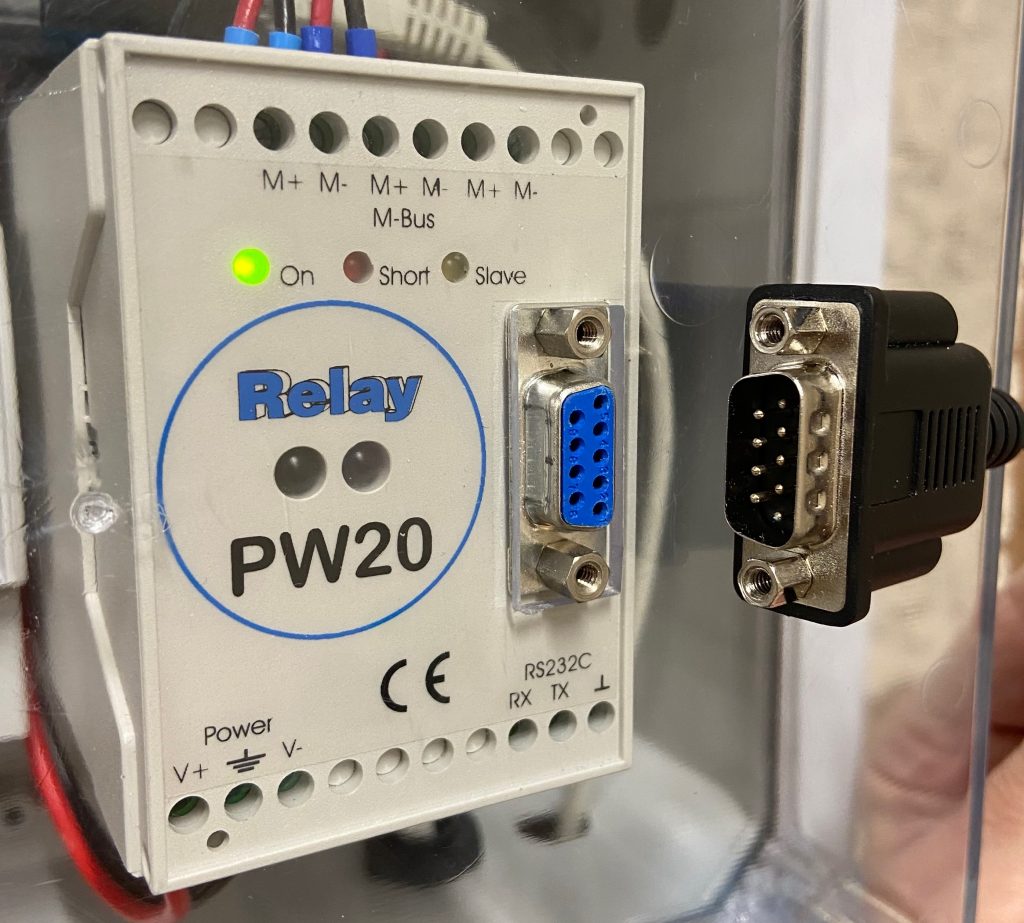
The PW20 is fitted with a Female DE-91 connector and the USB-to-RS-232 lead (with an FTDI interface chip) has a Male DE-9 connector – so that should all work fine but they both have fixing nuts which clash, preventing the plug from being inserted.

A minor annoyance – the electrical connectors will mate directly – except both sides have the nuts fitted

The nuts are rigidly fixed into the connector on the lead – and they secure the connector to the front of the PW20 (with further nuts inside the case which would be hard to re-attach.) Creative use of two Gender Change adaptors with the locknuts removed seems to work OK. (Ordinarily I use a different FTDI cable with a replacement DE-9 head, which has locking screws rather than locking nuts.)

After trying various cabling options and checking the default Primary Address I was able to program a unique Primary Address (and the meter serial number and initial meter reading) using the Actaris Cyble M-Bus Configuration Tool (CMCT) software. The devices then responded to the normal M-Bus polling code – but with ‘short’ responses, missing any meter readings. Comparing these responses to the ones from the ‘good’ meters in the House, the <Status>10</Status> is the only material difference in the <SlaveInformation> record (the meters in the House report <Status>00</Status>).

$ mbus-serial-request-data -b 2400 /dev/ttyUSB0 6
<?xml version="1.0" encoding="ISO-8859-1"?>
<MBusData>

    <SlaveInformation>
        <Id>22001387</Id>
        <Manufacturer>ACW</Manufacturer>
        <Version>20</Version>
        <ProductName>Itron CYBLE M-Bus 1.4</ProductName>
        <Medium>Water</Medium>
        <AccessNumber>20</AccessNumber>
        <Status>10</Status>
        <Signature>0000</Signature>
    </SlaveInformation>

    <DataRecord id="0">
        <Function>Manufacturer specific</Function>
        <Value>00 22 00 13 87 CF EA 03 07 01 12 03 0B</Value>
        <Timestamp>2026-01-24T13:02:29Z</Timestamp>
    </DataRecord>

</MBusData>

Initially I wondered whether the meters needed to ‘see’ a certain amount of water usage in order for a reading to be reported, but even running a couple of hundred litres through one of them didn’t change the response.

There aren’t many functions available in the CMCT software, but one of those is Reset alarms and running that did the trick, with the XML response changing to the expected:

$ mbus-serial-request-data -b 2400 /dev/ttyUSB0 6
<?xml version="1.0" encoding="ISO-8859-1"?>
<MBusData>

    <SlaveInformation>
        <Id>22001387</Id>
        <Manufacturer>ACW</Manufacturer>
        <Version>20</Version>
        <ProductName>Itron CYBLE M-Bus 1.4</ProductName>
        <Medium>Water</Medium>
        <AccessNumber>40</AccessNumber>
        <Status>00</Status>
        <Signature>0000</Signature>
    </SlaveInformation>

    <DataRecord id="0">
        <Function>Instantaneous value</Function>
        <StorageNumber>0</StorageNumber>
        <Unit>Fabrication number</Unit>
        <Value>22001387</Value>
        <Timestamp>2026-01-25T15:08:47Z</Timestamp>
    </DataRecord>

    <DataRecord id="1">
        <Function>Instantaneous value</Function>
        <StorageNumber>0</StorageNumber>
        <Unit>cust. ID</Unit>
        <Value>0Z        </Value>
        <Timestamp>2026-01-25T15:08:47Z</Timestamp>
    </DataRecord>

    <DataRecord id="2">
        <Function>Instantaneous value</Function>
        <StorageNumber>0</StorageNumber>
        <Unit>Time Point (time &amp; date)</Unit>
        <Value>2026-01-25T15:07:00</Value>
        <Timestamp>2026-01-25T15:08:47Z</Timestamp>
    </DataRecord>

    <DataRecord id="3">
        <Function>Instantaneous value</Function>
        <StorageNumber>0</StorageNumber>
        <Unit>bat. time</Unit>
        <Value>4010</Value>
        <Timestamp>2026-01-25T15:08:47Z</Timestamp>
    </DataRecord>

    <DataRecord id="4">
        <Function>Instantaneous value</Function>
        <StorageNumber>0</StorageNumber>
        <Unit>Volume (m m^3)</Unit>
        <Value>3515</Value>
        <Timestamp>2026-01-25T15:08:47Z</Timestamp>
    </DataRecord>

    <DataRecord id="5">
        <Function>Instantaneous value</Function>
        <StorageNumber>0</StorageNumber>
        <Unit>Volume (m m^3)</Unit>
        <Value>0</Value>
        <Timestamp>2026-01-25T15:08:47Z</Timestamp>
    </DataRecord>

    <DataRecord id="6">
        <Function>Instantaneous value</Function>
        <StorageNumber>1</StorageNumber>
        <Unit>Volume (m m^3)</Unit>
        <Value>0</Value>
        <Timestamp>2026-01-25T15:08:47Z</Timestamp>
    </DataRecord>

    <DataRecord id="7">
        <Function>Manufacturer specific</Function>
        <Value>1F 02 00</Value>
        <Timestamp>2026-01-25T15:08:47Z</Timestamp>
    </DataRecord>

</MBusData>

Another thing to note is that by default, the Volume Index in CMCT was formatted as NNNNNNN.N m3 whereas the physical display on the meter shows NNNNN.NNN m3 – and they need to match in order for the readings to be accurate. While it’s not possible to add three decimal places with 7 leading digits (i.e. NNNNNNN.NNN) it is possible to delete two of the leading digits in order to add three decimal places.

Finally, after having had issues with the Cyble reader heads getting dislodged in the past (resulting in them missing some updates from the meters) I wanted to pay more attention to fixing them more securely. I rather expected the new units to come with fixing screws, but they didn’t – but the one screw I had for the meters in the House fitted fine. That’s an M4 x 25mm Cheese Head machine screw, made of Nylon. Note it’s necessary to destructively ‘unscrew’ a plastic piece covering the brass insert that the screw engages with. On the newer meters this projects roughly 5mm above the surface and prevents the Cyble adaptor being fitted until it is removed, whereas on the older meters it’s recessed below the surface and only prevents the screw from being inserted. The removal of this plastic piece is cryptically shown at W2 ‘B’ in the Installation Instructions (attached below).

  1. Sometimes mistakenly called a DB-9 – but the ‘B’-size connector shell is generally only used with 25-pin connectors ↩︎